Find past copies, organize favorites, assign keyboard shortcuts to favorite items, and paste with a keystroke.
Clipboard history
A second look at what you copied
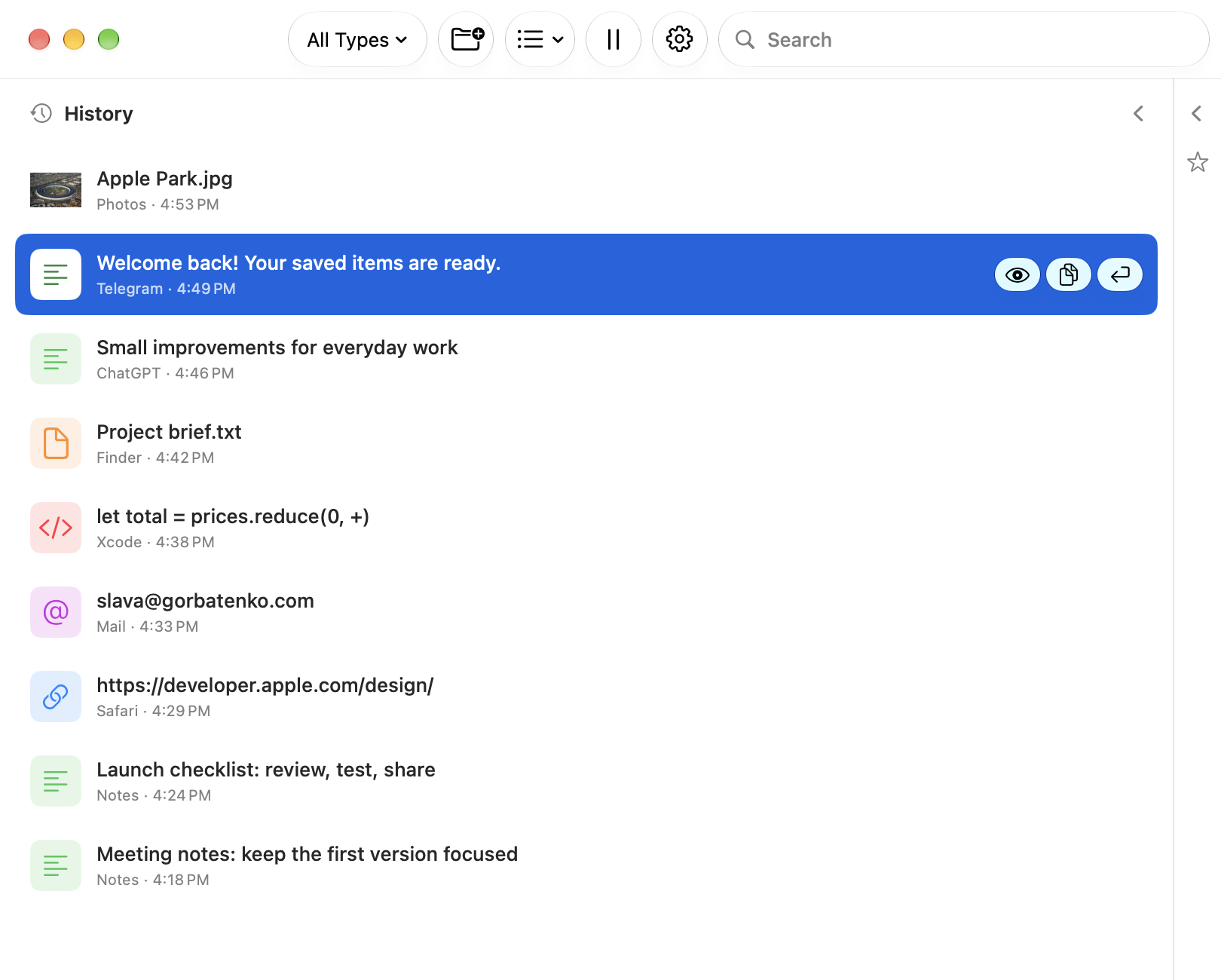
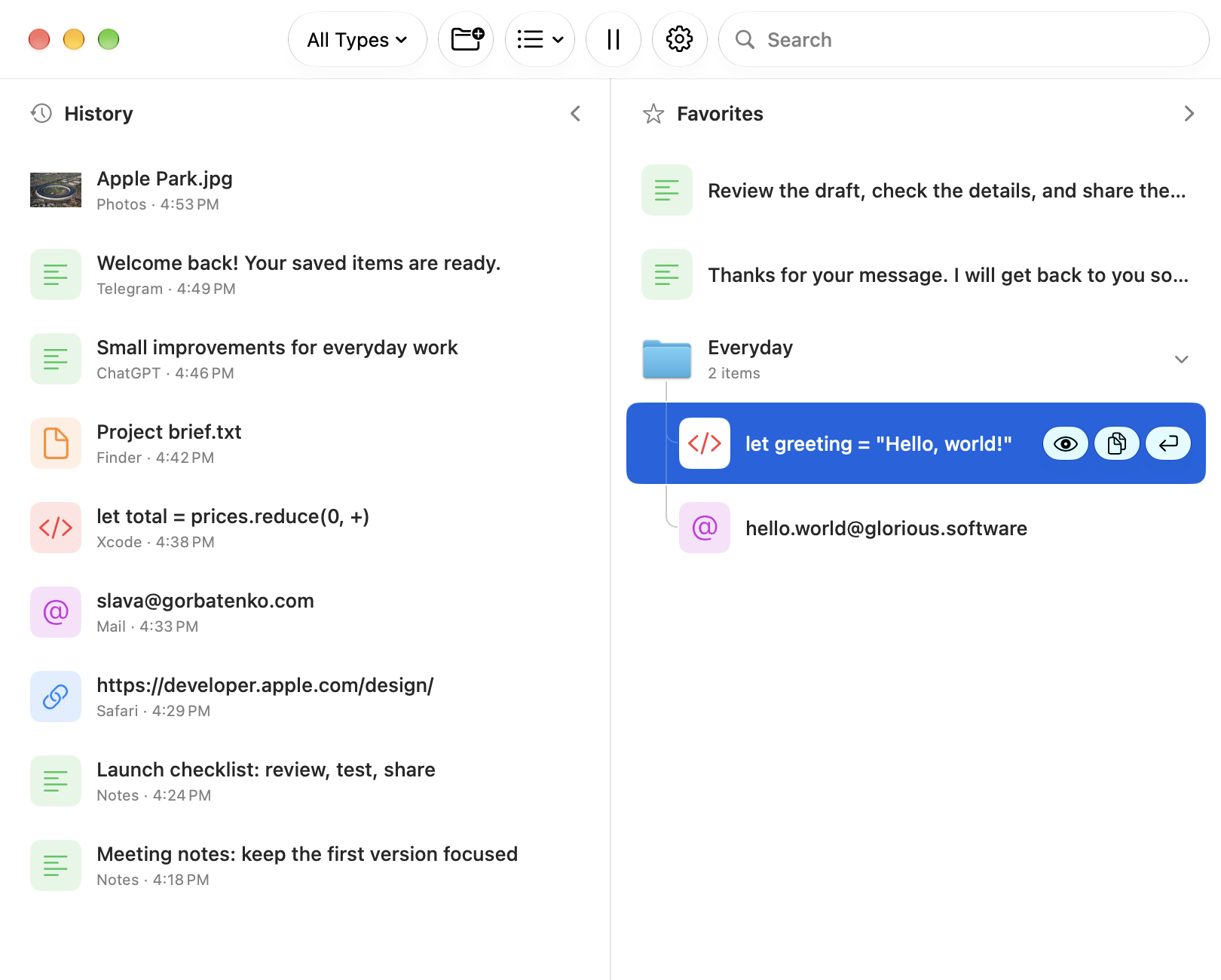
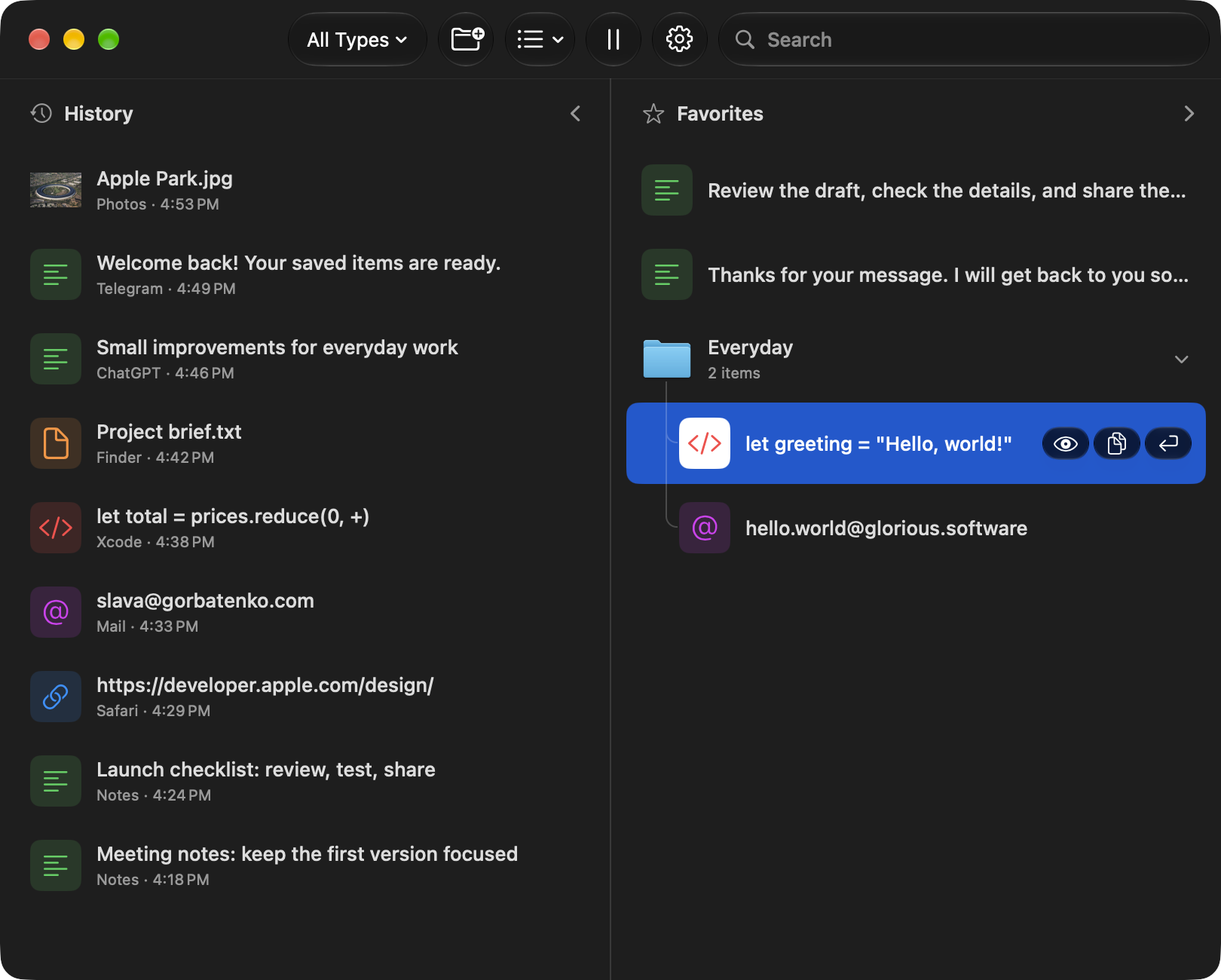
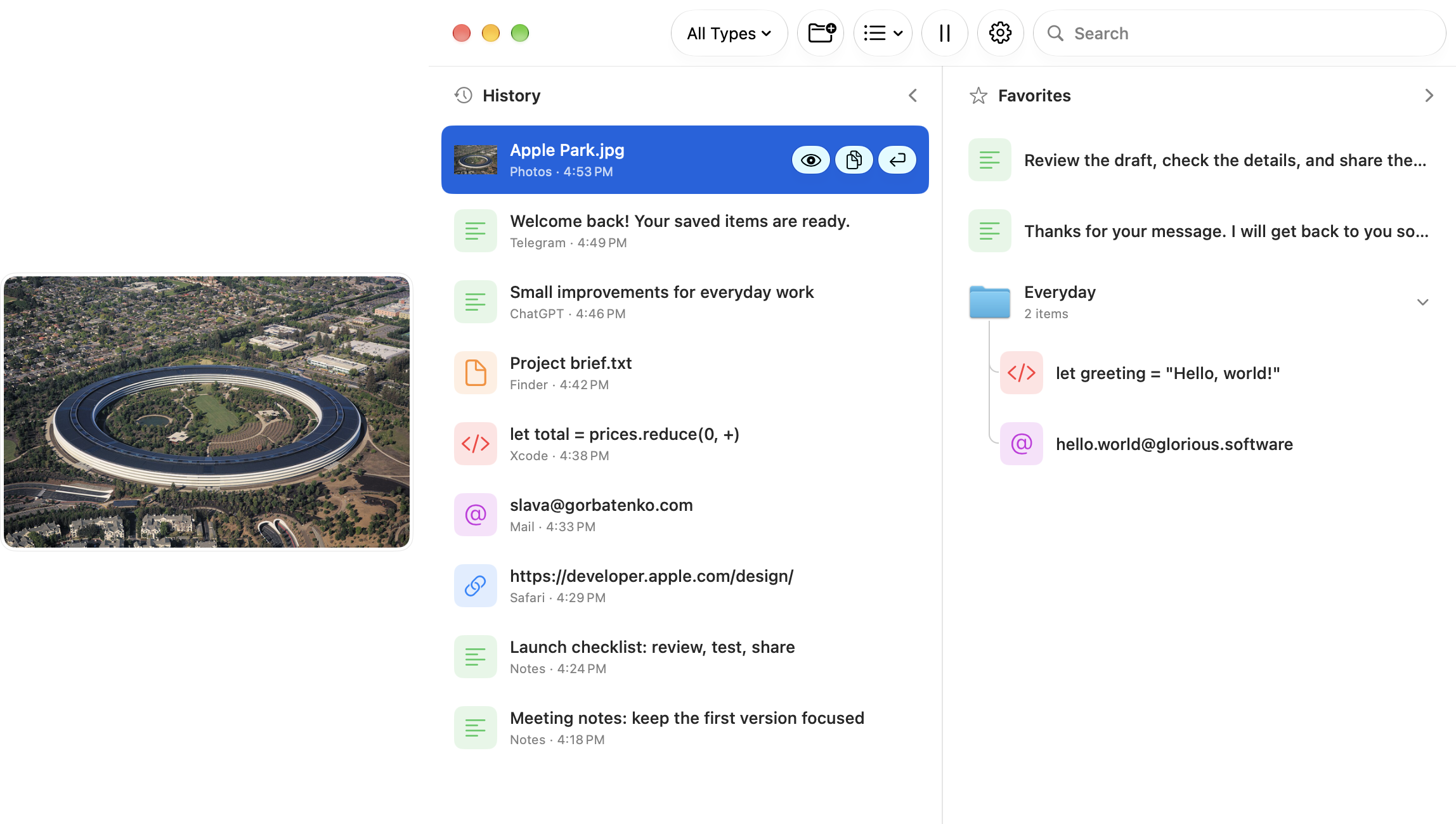
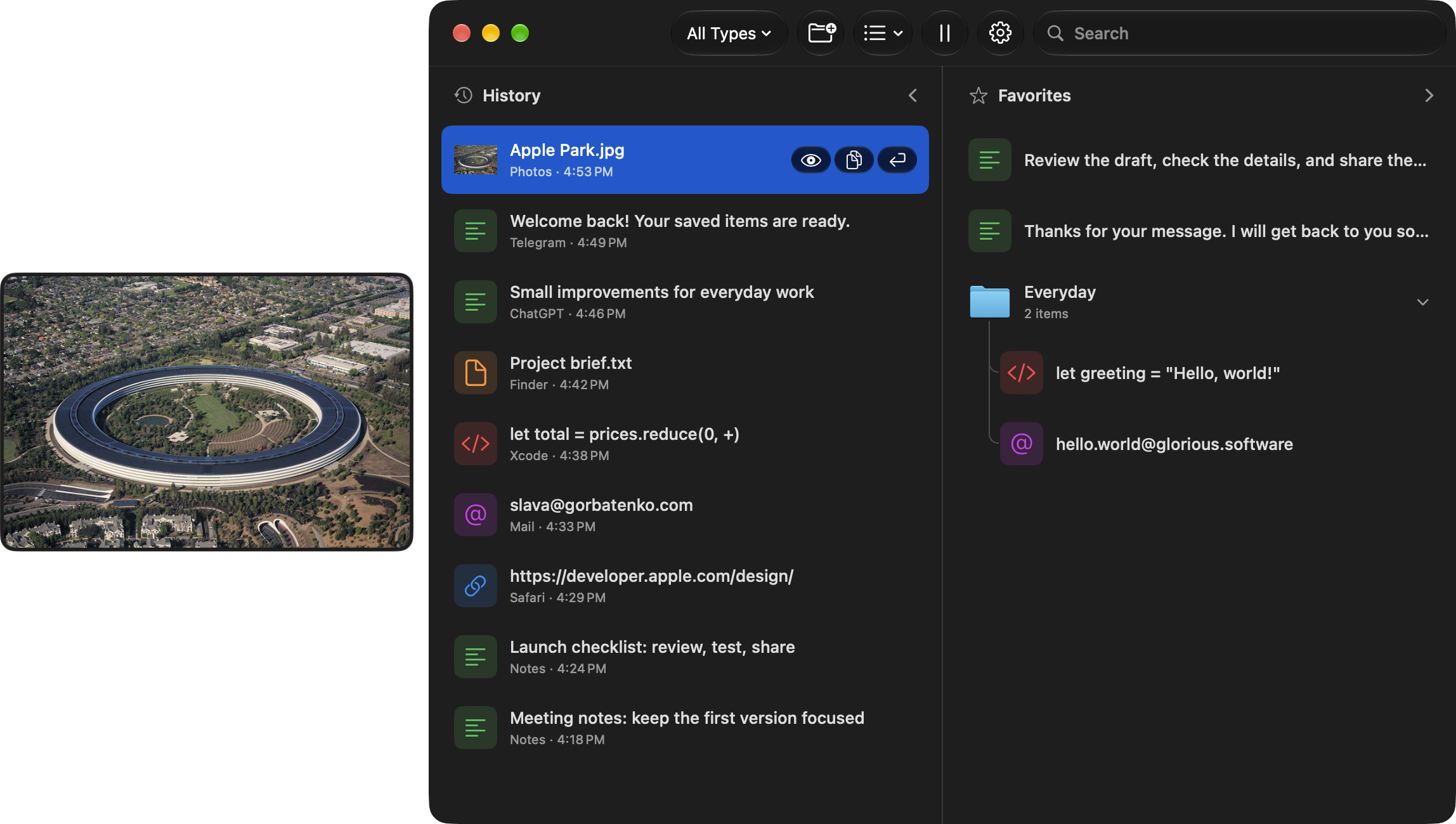
Keep text, links, email addresses, code, images, and files in one searchable history. Copy several files at once and save them as one group or as separate records. Return to an earlier copy when you need it again.
Favorites
Keep the things you reach for
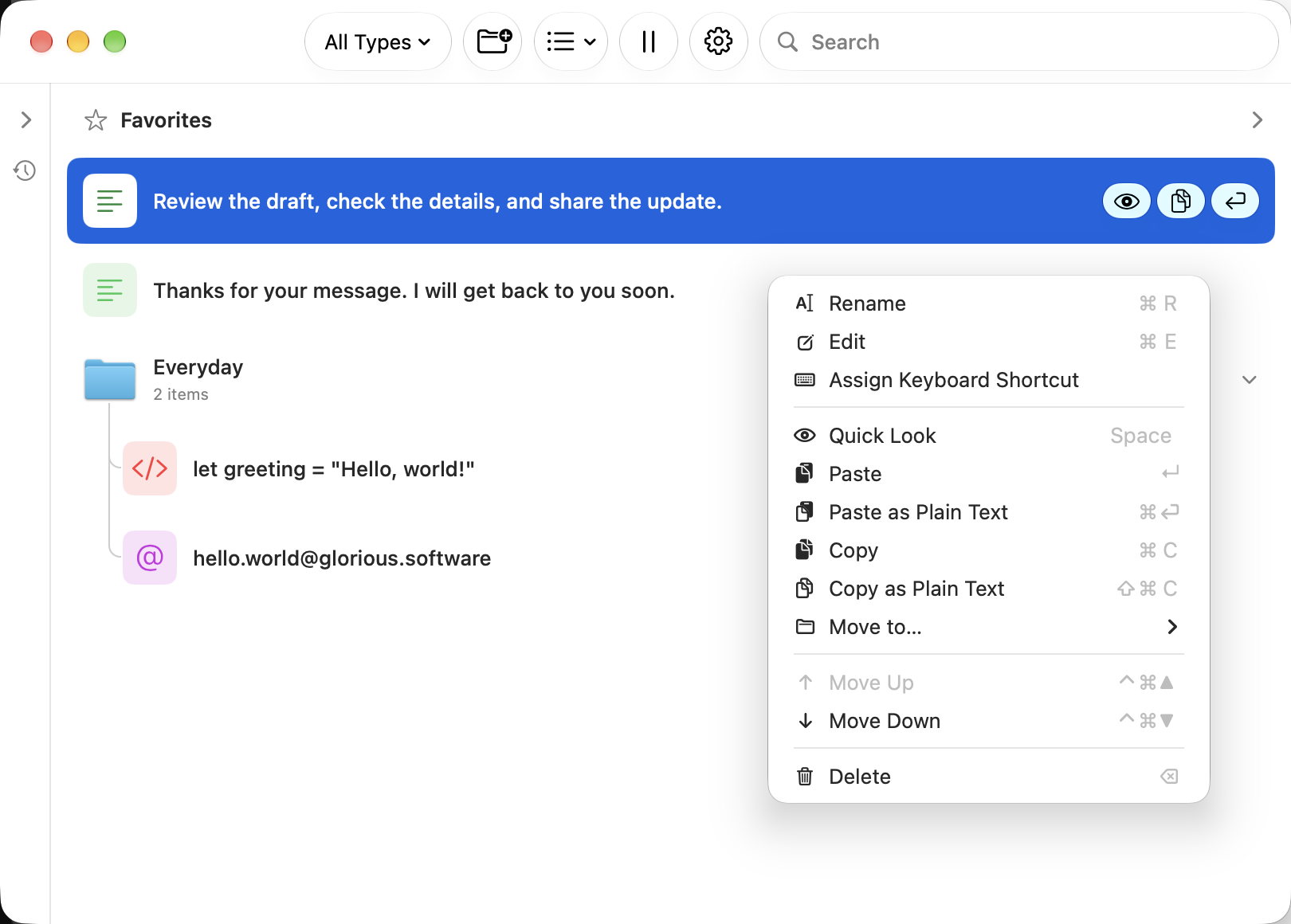
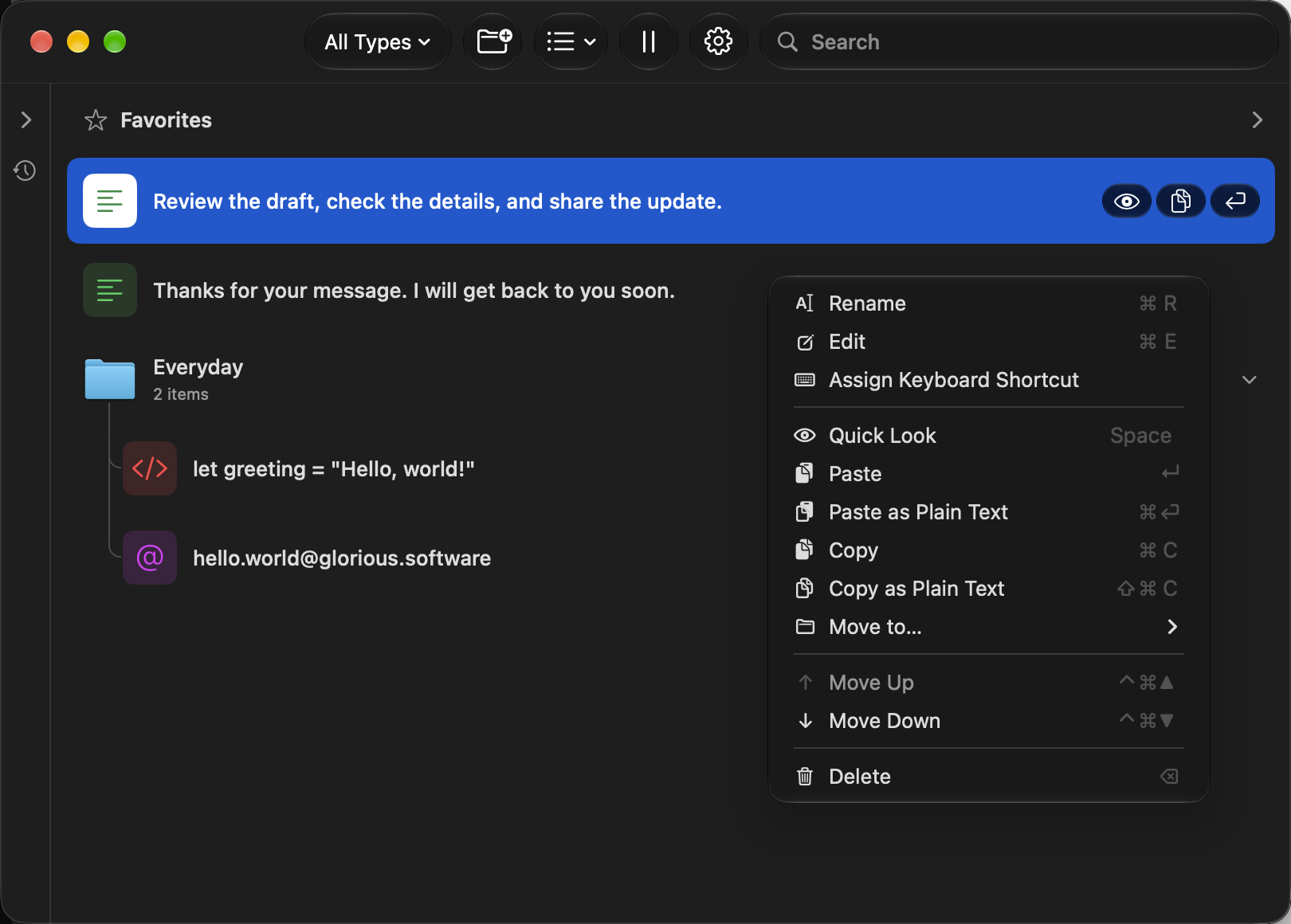
Move useful copies to Favorites, give them clear names, and organize them in folders. Keep reusable replies, links, and files ready for next time. Assign keyboard shortcuts to your most-used favorites to paste them without opening the app window.
Quick paste
Back to your work. In a keystroke
Open your clipboard with a shortcut and paste into the app you were using. Need just the text? Paste without formatting.
Choose a record, press Return and carry on.
Search
Find it. Even in a picture
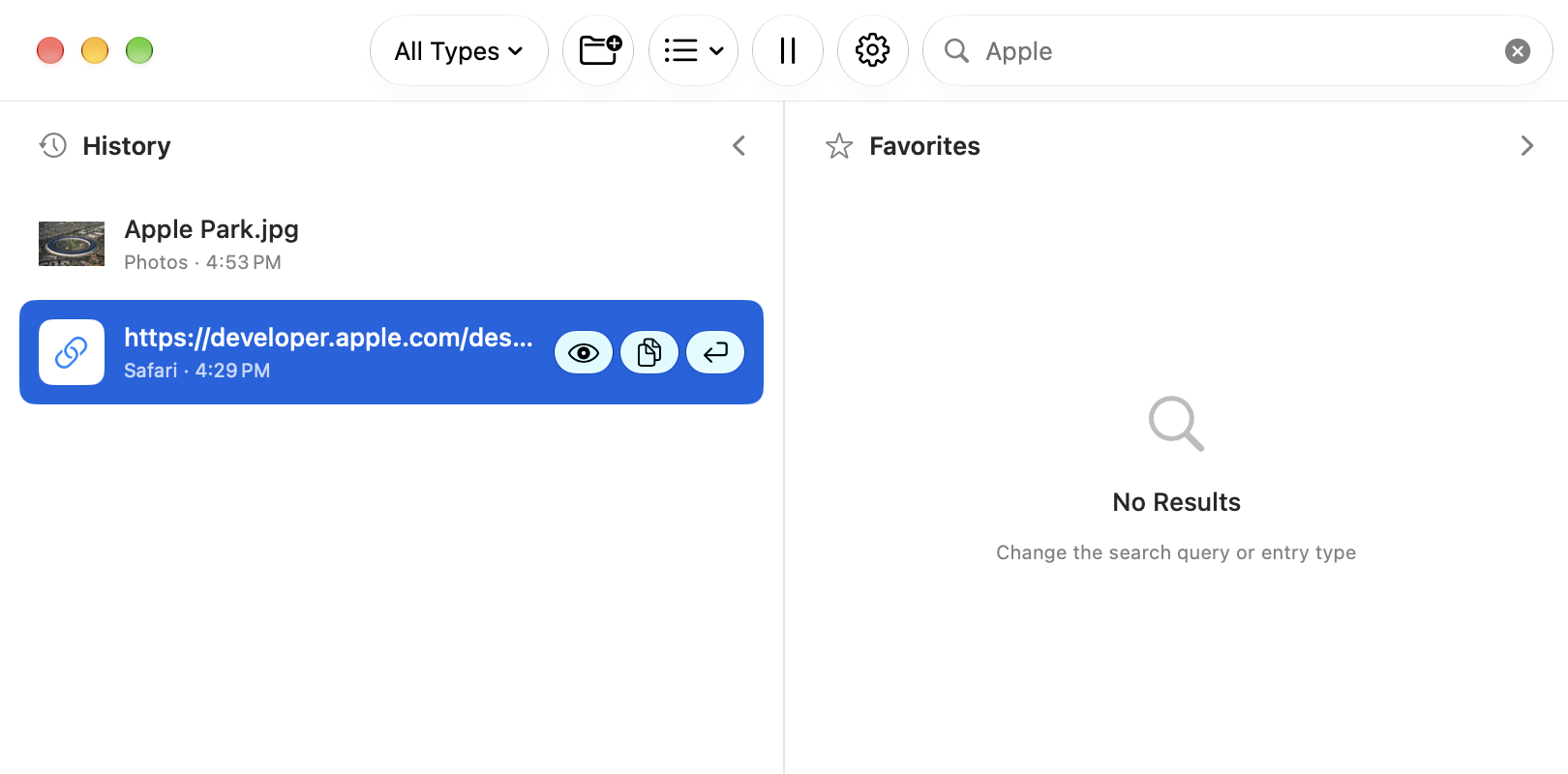
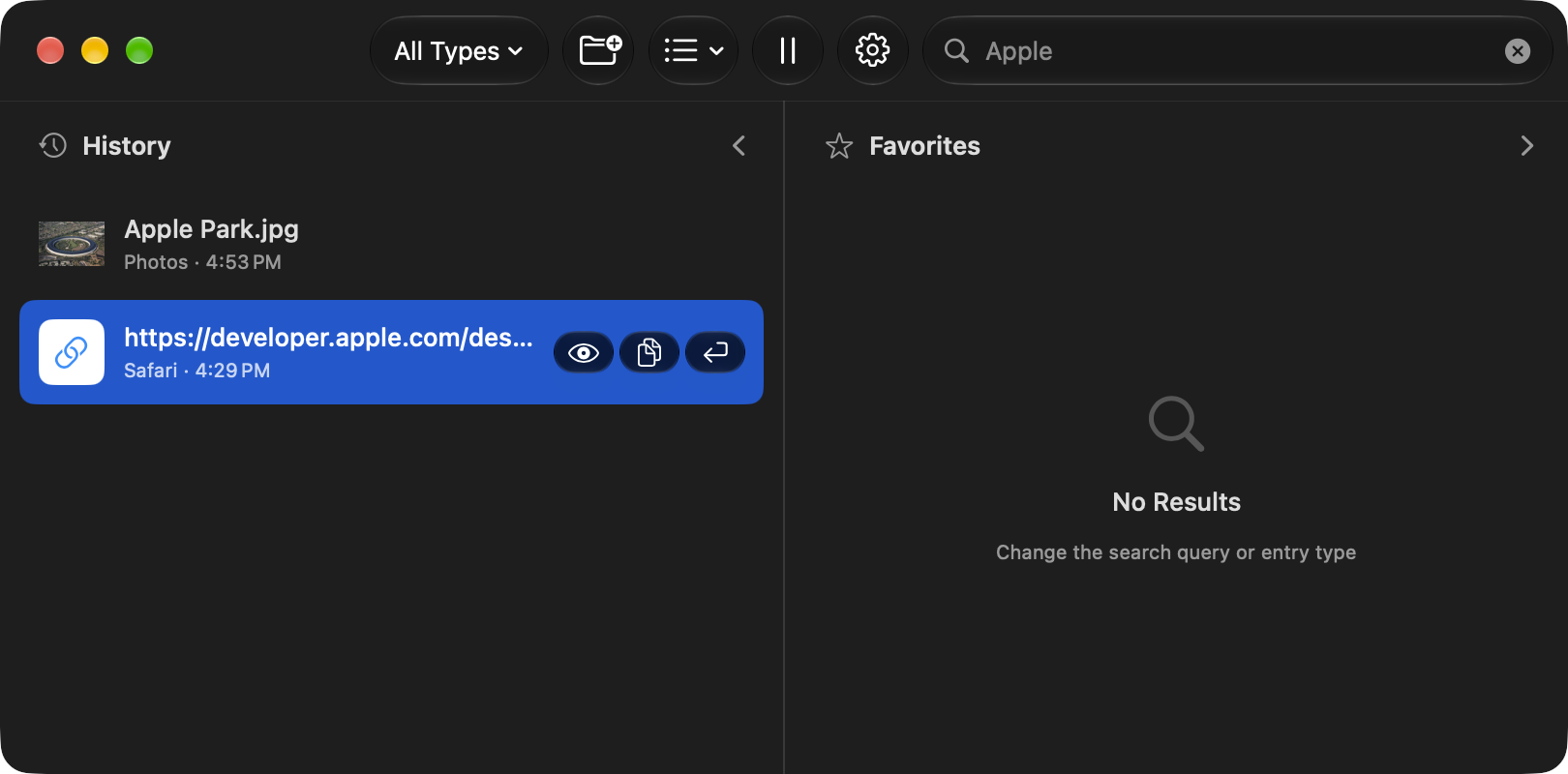
Search History and Favorites together by content, name, or source app. Filter by content type, and enable on-device text recognition to find words inside images.
Previews
See more before you paste
See images beside your list, or press Space to preview any record type with Quick Look — text, links, email addresses, code, images, and files. Check the content before bringing it back into your work.
Your clipboard, your control
On your Mac. On your terms
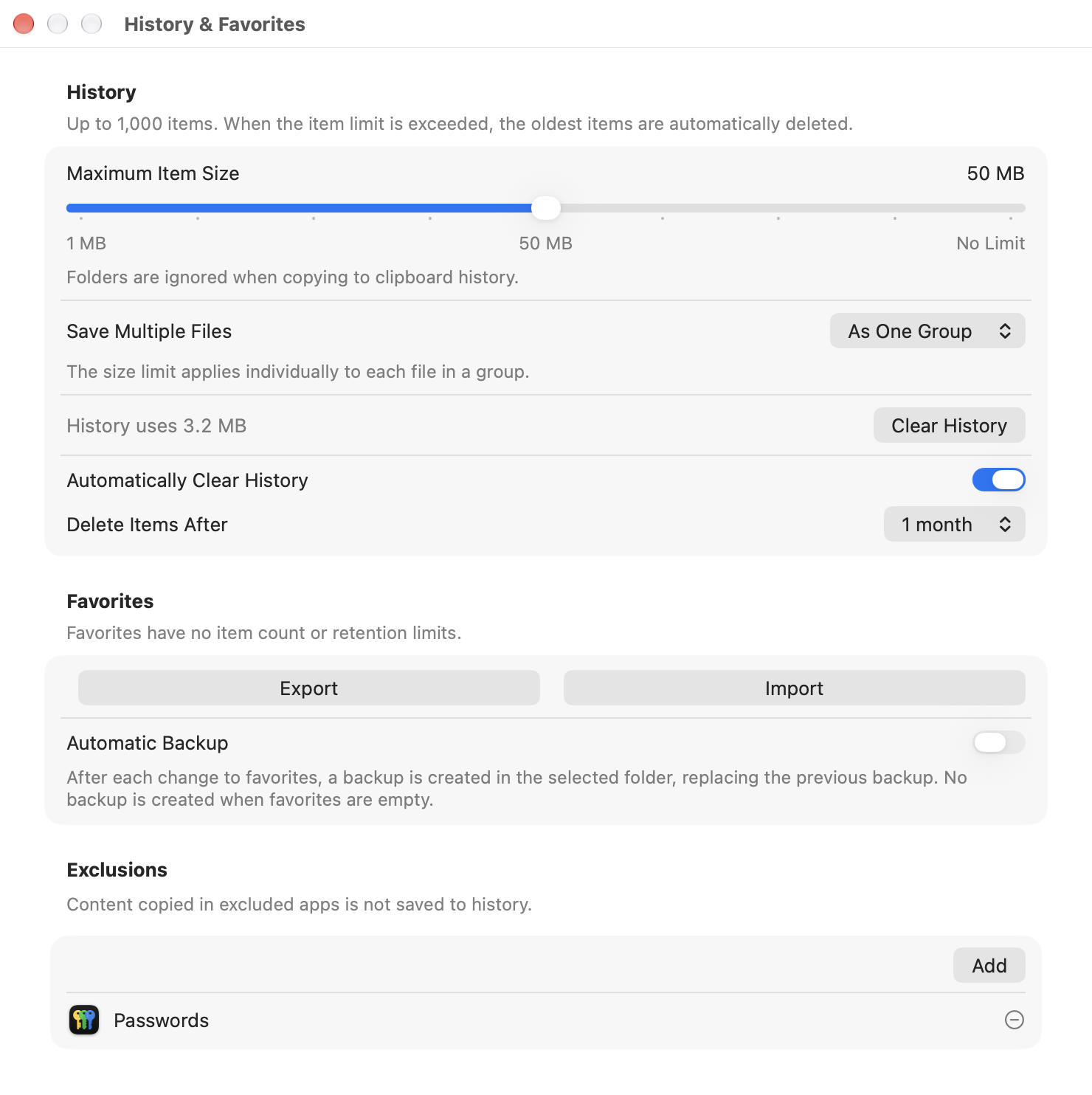
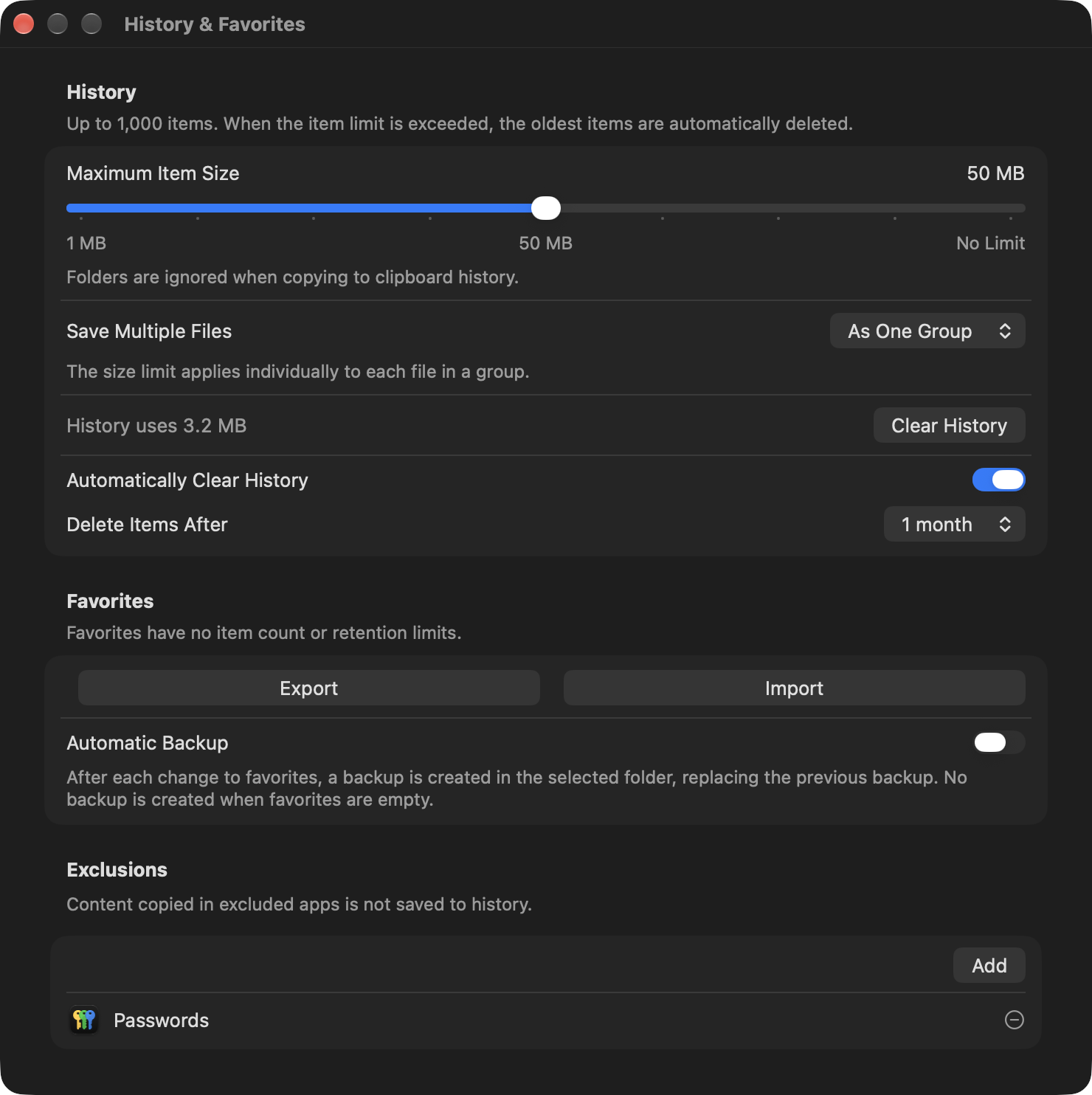
Your clipboard library stays on your Mac. Set the maximum size of saved items, pause recording whenever you need to, exclude specific apps, and choose when older history is automatically cleared.
Full feature list
Clipboard history
Capture plain and formatted text, links, email addresses, code, images, and files.
Preserve supported clipboard formats for copying and pasting.
View the source app and copy time in detailed history rows.
Bring an existing history item to the top when you copy it again.
Keep up to 1,000 history items.
Clear history while keeping Favorites.
Enable automatic cleanup and choose a retention period from one day to one year.
Favorites and folders
Move history items to Favorites for long-term storage.
Give favorite records custom names.
Organize records in folders and nested folders.
Rename folders and move records or folders between them.
Arrange favorites with drag and drop, menu commands, or keyboard shortcuts.
Select and move or delete multiple items together.
Edit saved favorite text and links, including formatting and undo.
Reuse saved text as replies, signatures, and other templates.
Keep favorite names, folders, and order when their content is copied again.
Assign individual global keyboard shortcuts to paste favorite records.
Search and filters
Search History and Favorites together.
Search record content, custom names, and source apps.
Find records inside collapsed folders.
Start searching by typing while a list is focused.
Filter by text, links, email addresses, code, images, or files.
Switch type filters with keyboard shortcuts.
Enable local text recognition for new and previously saved images.
Search recognized image text alongside other record content.
Automatically identify supported content types, including code.
Copy and paste
Copy a selected record back to the clipboard.
Paste directly into the app you were using with Return or a double-click.
Copy or paste text without formatting.
Return to the previous app after copying a record.
Copy file-list entries as plain text.
Customize the global shortcut for opening Clipboard.
Customize supported record-action shortcuts.
Check shortcut conflicts and reset assignments individually or together.
Previews and saved files
See image thumbnails in the list.
View selected images in a preview beside the main window.
Open any record type in Quick Look with Space.
Browse records while Quick Look is open.
Preview individual files within a saved file list.
Recognize supported copied image files as images.
Store captured files as independent copies.
Save multiple copied files as one group by default, or choose separate records in Settings.
Skip files that exceed the size limit while saving the other eligible files.
Reuse stored file copies after the originals have moved or been deleted.
Delete saved records without deleting the original files.
Recording and local storage
Store the clipboard library locally on your Mac.
Choose a maximum item size from 1 to 500 MB, or No Limit.
Pause and resume recording from the app or menu bar.
Use a customizable global shortcut to pause or resume recording.
Exclude selected apps from recording.
Respect macOS secure input and supported confidential-content markers.
Remove individual records or clear ordinary history.
Backup and transfer
Export the complete Favorites library to a .gcfavorites archive.
Preserve folders, names, text formatting, images, and saved file copies.
Import favorites alongside existing records.
Enable automatic Favorites backups to a folder you choose.
Restore favorites by importing a saved archive.
Shortcuts and Siri integration
Get plain text from a favorite record.
Add text to Favorites with an optional name and destination folder.
Copy a favorite record, including its supported formats, images, or files.
Pause or resume history recording.
Preselect a favorite or choose one when a shortcut runs.
Search favorites and folders in the record picker.
Combine these actions with other apps in Shortcuts.
Run prepared shortcuts through Siri by name.
Use eligible actions through Spotlight on supported macOS versions.
Everyday use
Open Clipboard from the menu bar.
Launch automatically at login.
Keep the app running when its window is closed.
Choose compact or detailed list rows.
Resize the History and Favorites panes.
Hide either pane to focus on the other.
Navigate records, panes, and folders with the keyboard.
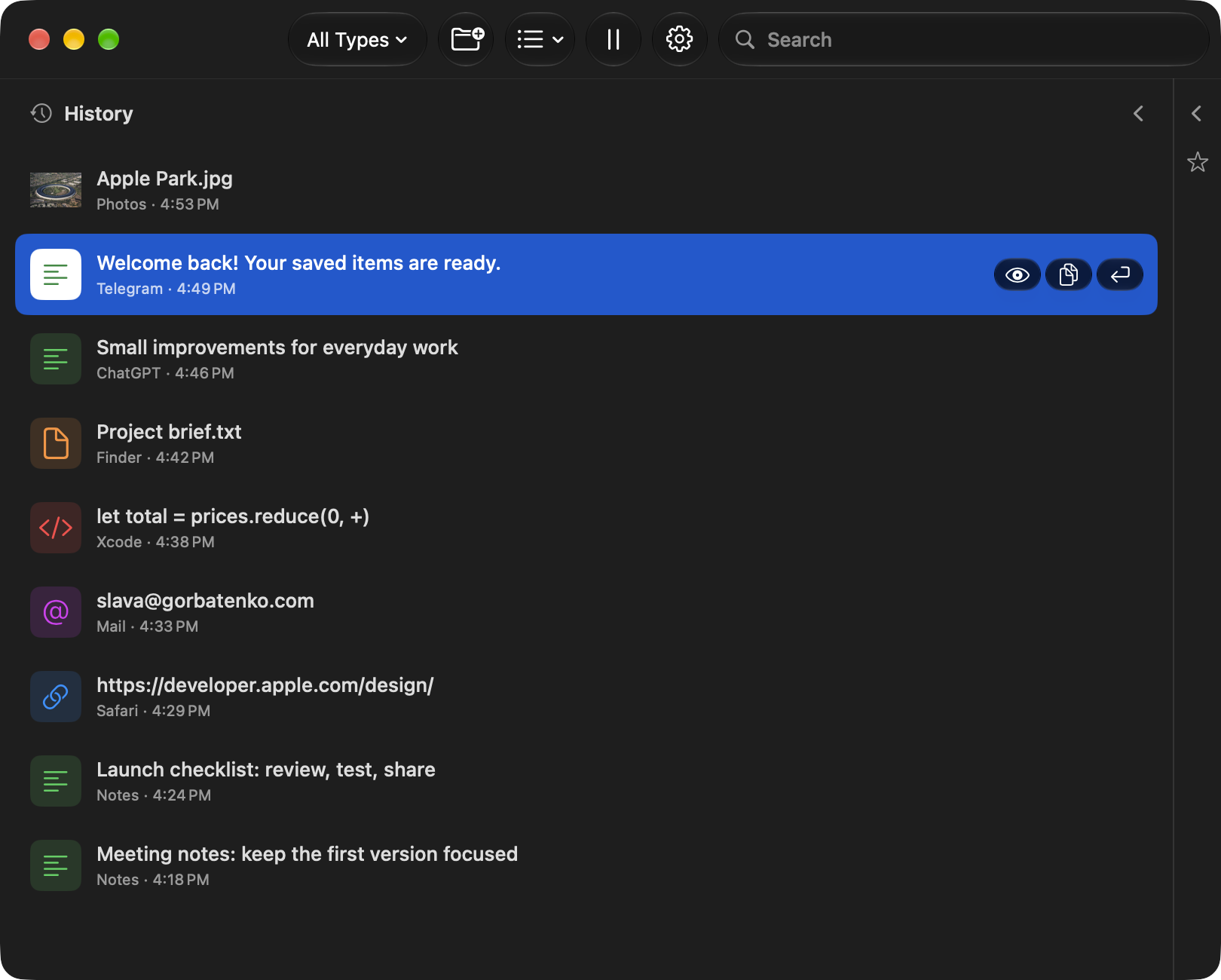
Follow the system appearance or choose light or dark.
Adjust app text size from 100% to 200%.
Search Settings and navigate between settings pages.
Use the app in 43 language and regional localizations.